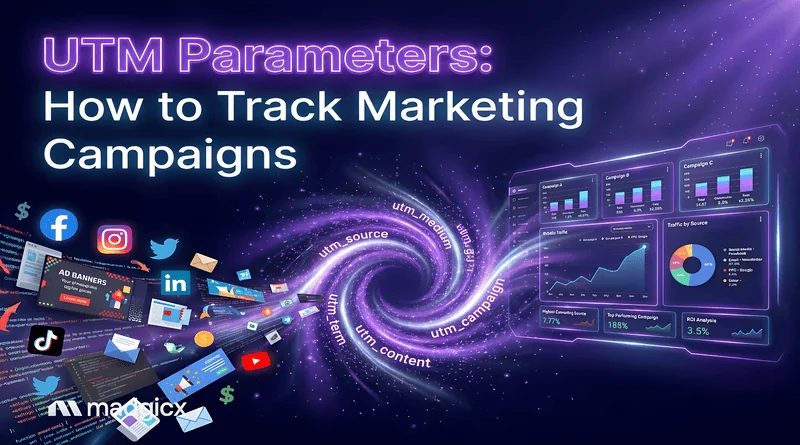
Learn how UTM parameters track marketing campaigns. Explore the 5 main tags, Meta's dynamic parameters, and how to measure campaign traffic in Google Analytics.
You check Meta Ads Manager: 120 purchases. You check Google Analytics: 74. Then you spot a big chunk of traffic labeled "(not set)" and quietly close the laptop. 😅 We get it. Mismatched numbers are one of the most frustrating parts of running ads.
UTM parameters are short tags you add to the end of a link so your analytics tool knows exactly where a visit came from. When someone clicks your Meta ad, the tags tell Google Analytics the source, the type of traffic, and the campaign, so the visit lands in the right report instead of a mystery bucket.
In this guide, we'll cover the five tags that matter, how to add them to Meta ads in under a minute with dynamic parameters, and the namingf rules that keep your reports clean.
UTMs tell you where a click came from, but browser-based tracking still misses conversions. Madgicx's Server-Side Tracking sends conversion data server-to-server back to Meta and addresses iOS data collection issues, and it's included in Madgicx.
What You'll Learn
- What UTM parameters are and the five tags you'll use on almost every link
- How to add UTMs to Meta ads automatically with dynamic parameters (copy-and-paste string included)
- The naming rules that stop "(not set)" and messy, split campaigns in GA4
- Bonus: the limits of UTM tracking, and what to pair it with for fuller data
What Are UTM Parameters?
Here's the simplest way to think about it: a UTM is a little name tag your link wears. When the visitor arrives, Google Analytics reads the tag and files the visit in the right place.
UTM parameters are tags added to a URL, after a question mark, that tell analytics tools the source, medium, and campaign of a visit. They were introduced by Urchin, the analytics tool that came before Google Analytics, and Google Analytics supports them out of the box, according to Philosurf.com.
A tagged link looks like this:
https://yourstore.com/product?utm_source=facebook&utm_medium=paid&utm_campaign=spring_sale
Everything after the "?" is tracking. Each tag is a name and a value, joined by "=", and tags are separated by "&". According to Google Analytics Help, the order of the tags doesn't matter.
The 5 UTM Parameters You'll Actually Use
Google lists a few more tags, but five do almost all the work. According to Google Analytics Help, you should always use utm_source, utm_medium, and utm_campaign whenever you tag a link.
Google also documents newer tags such as utm_id, utm_source_platform, utm_creative_format, and utm_marketing_tactic. Google notes that utm_creative_format and utm_marketing_tactic aren't currently shown in GA properties, so most advertisers can skip them for now.
Pro Tip: For Meta ads, use utm_term for the ad set and utm_content for the ad. That way one GA4 report shows you which audience and which creative drove each sale.
How to Add UTM Parameters to Meta Ads
Now for the good news: you don't have to type a new link for every ad. Meta has a URL parameters field and dynamic parameters that fill in your campaign, ad set, and ad names automatically.
Here's how to add them:
- Open your ad in Meta Ads Manager (new or existing, in edit mode).
- Scroll to the Tracking section and find the URL parameters box. When creating a new ad, you'll also see a "Build a URL Parameter" link under the website URL field, according to Jon Loomer.
- Paste your parameter string (see the example below), exactly as written.
- Publish or save the ad.
- Test it: click the ad preview link and check that the tags appear in the browser address bar.
Meta's dynamic parameters
Meta swaps each placeholder below for the real value when someone clicks.
A ready-to-paste string
This string, shared in the Pixelflow docs, covers the five main tags plus the campaign ID:
utm_source=facebook&utm_medium=paid&utm_campaign={{campaign.name}}&utm_id={{campaign.id}}&utm_term={{adset.name}}&utm_content={{ad.name}}
Prefer to see the platform and placement instead? Jon Loomer suggests using {{site_source_name}} as the source and {{placement}} as the medium.
For the full walkthrough of connecting Meta campaigns to Google Analytics, check out our guide on tracking Facebook ad performance in Google Analytics.
How GA4 Reads Your UTMs (and Why "(not set)" Happens)
So you've tagged everything. Where does it show up? In GA4, your values appear in the Traffic acquisition report, under session source, session medium, and session campaign, according to Google Analytics Help.
GA4 also sorts traffic into channels like "Paid Social" using rules.
According to Google's default channel group rules, manually tagged traffic counts as Paid Social when the source matches Google's list of social sites and the medium matches this pattern: ^(.*cp.*|ppc|retargeting|paid.*)$.
See the trap? Tag paid Meta ads with utm_medium=social and GA4 will file them as organic, which makes your paid results look smaller than they are. And if you leave tags out, Google warns that missing UTM parameters show up as "(not set)" in reports.
Pro Tip: After you change your tags, open Traffic acquisition the next day and filter by session source "facebook". If your paid campaigns land in Organic Social or Unassigned, fix the medium first.
UTM Naming Rules That Keep Your Data Clean
Here's the thing about UTMs: they're only as good as your naming. One teammate types "Facebook", another types "facebook", and suddenly you have two sources for the same traffic.
Follow these rules and your reports stay tidy:
- Use lowercase every time. According to Google Analytics Help, values are case sensitive: "utm_source=google is different from utm_source=Google."
- Pick one separator and stick to it. Google warns that names like SpringSale and Spring_Sale are counted as two different campaigns.
- Never leave out source, medium, or campaign. Missing tags turn into "(not set)".
- Name your Meta ads clearly. With {{ad.name}}, your ad name becomes your utm_content, so "Ad 1" tells you nothing. Jon Loomer recommends descriptive ad names for exactly this reason, per Jon Loomer.
- Remember campaign names are locked at publish. {{campaign.name}} keeps the name the campaign had when it was published, even if you rename it later.
- Write your rules down. A one-page naming guide stops new team members (and clients) from inventing their own.
Quick Tip: Agencies, put your naming guide in each client's onboarding doc. It saves a lot of awkward "why doesn't GA match Ads Manager?" calls later.
The Limits of UTM Tracking (and What to Pair It With)
Now, a little honesty: UTMs are brilliant, but they're not the whole story. They describe the click, and some conversions don't come from a tracked click at all.
UTMs aren't a replacement for Ads Manager reporting because they don't capture view-through conversions or conversions that happen days after a click. A few more quirks can skew your GA4 numbers:
- Shared links keep their tags. If someone shares your tagged link, their friends' visits still count as "facebook / paid".
- Meta's review bots can send a burst of empty traffic right after you submit a campaign. Consider leaving out a campaign's first day when you compare numbers.
- The URL parameter builder isn't available for every campaign objective, per the same source. If you can't see it, the objective probably doesn't support it.
That's why UTMs work best as one layer of a tracking setup. Make sure your Facebook Pixel is firing, check events in Events Manager, and add the Conversions API so conversion data doesn't depend on the browser alone.
Then bring it together. Madgicx's One-Click Report combines Meta, GA4, Shopify, and other channels in one report, so you can compare what Ads Manager and GA4 say side by side.
Our guide to Facebook ads client reports shows which metrics to put in front of clients.
And if you'd rather ask than dig, Madgicx MCP lets you connect Claude or ChatGPT to your Madgicx account and ask about campaign performance in any language.
Frequently Asked Questions (FAQ)
Which UTM parameters are required?
Google recommends always using three: utm_source, utm_medium, and utm_campaign. Together they tell GA4 who sent the visit, what kind of traffic it was, and which campaign it belongs to. For Meta ads, adding utm_term (ad set) and utm_content (ad) is worth the extra few seconds, because it lets you see which audience and which creative drove results, not just which campaign.
Why does my Meta ad traffic show as "(not set)" or Unassigned in GA4?
"(not set)" usually means one of the main tags is missing from the link. Unassigned means GA4 couldn't match your tags to any channel rule. The most common cause is a medium GA4 doesn't recognize as paid. Google's rules count traffic as Paid Social when the source is a known social site and the medium matches values like "paid", "cpc", or "ppc.” Switch to utm_medium=paid and check again.
Do UTM parameters replace Meta Ads Manager reporting?
UTMs complement Ads Manager rather than replace it. They track the click that brought someone to your site, so they miss view-through conversions and conversions that happen days after a click, as Jon Loomer points out. Ads Manager and GA4 also use different attribution rules, so their numbers will rarely match exactly. Use GA4 to see on-site behavior and Ads Manager to judge ad delivery, and compare trends rather than chasing identical totals.
Should UTM values be lowercase?
Lowercase is the safest choice. UTM values are case sensitive, so "Facebook" and "facebook" create two separate sources in your reports. Google recommends lowercase as a standard and a consistent naming convention across your team. A simple written guide, plus a UTM builder that forces lowercase, keeps everyone's links consistent from the start.
Conclusion: Tag It Once, Trust Your Data
Here's what to take away:
- UTM parameters tell GA4 where each visit came from. Always use source, medium, and campaign.
- Meta's dynamic parameters do the work for you. One string in the URL parameters box tags every ad automatically.
- Your medium decides your channel. Use "paid" (or "cpc") for Meta ads so GA4 files them under Paid Social.
- UTMs are one layer. Pair them with the pixel, Conversions API, and a single report that shows Meta and GA4 side by side.
Your next step: make sure your Meta ads use consistent UTM parameters so you can identify paid traffic in GA4. And when you're ready for tracking that doesn't rely on the browser alone, try Madgicx free today. 📊