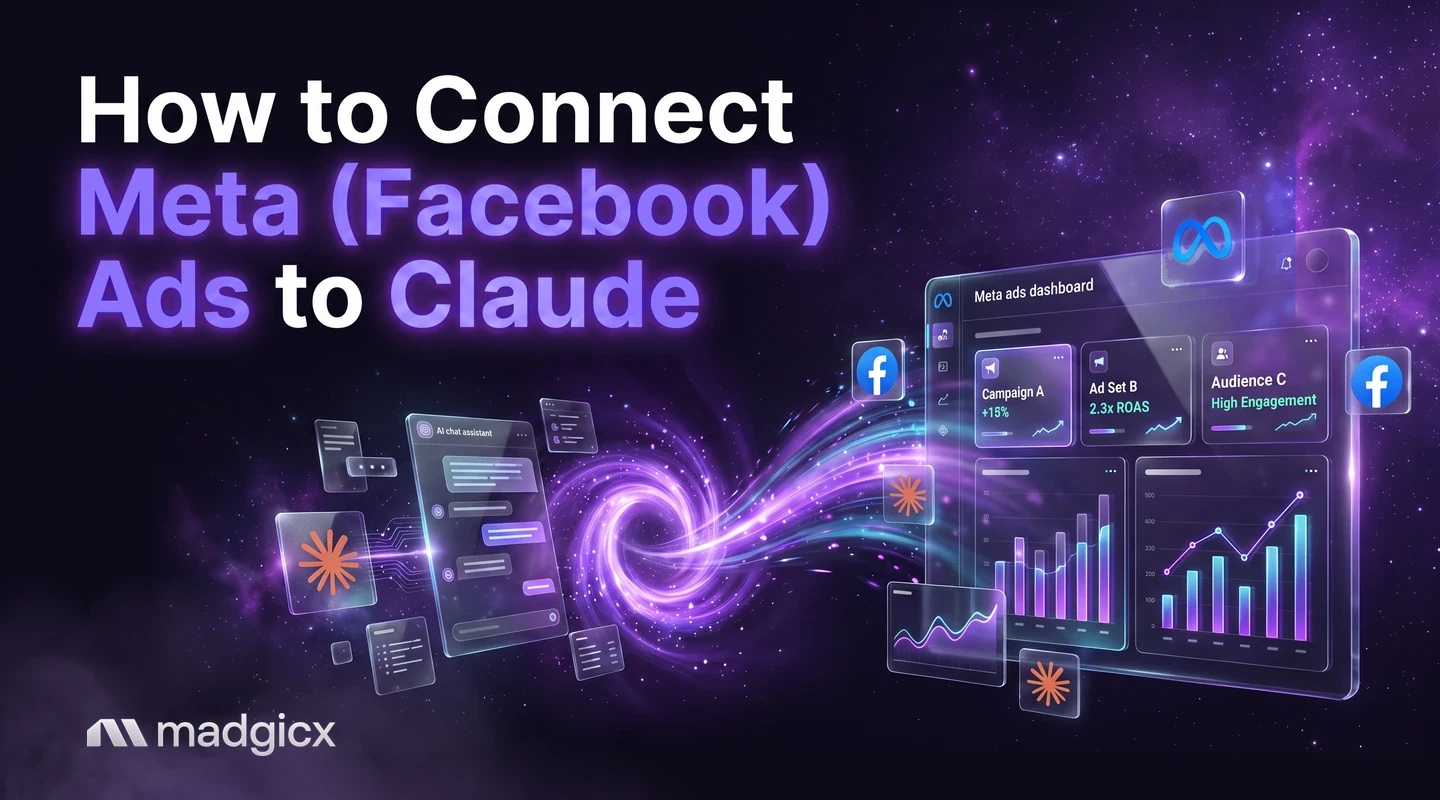
Connect Meta (Facebook) ads to Claude in minutes with the Madgicx connector. Step-by-step setup, what Claude can read, and prompts to paste.
To connect Meta (Facebook) ads to Claude, add the Madgicx connector in Claude, sign in with your Madgicx login and pick your team. Claude can then read your Meta ad account when you ask a question, with no exporting and pasting. It takes a few minutes, and it works the same way in Claude on the web and in the Claude desktop app.
This guide covers the setup step by step, what Claude can and can't do once it is connected, and five prompts you can paste on day one. Every change to your account waits for your confirmation.
The 7-day free trial includes the Madgicx MCP. Claude reads your account, and every change waits for your confirmation.
The Short Answer
Madgicx is listed in Claude's connector directory. You add it there, or you add a custom connector with the Madgicx server address, https://mcp.madgicx.com/mcp, and sign in with your Madgicx login. The connector is the Meta Ads MCP by Madgicx.
You need three things: a Claude plan that allows connectors, a Madgicx subscription or the 7-day free trial (the trial includes the MCP), and a Facebook ad account connected in Madgicx.
How to Connect Meta (Facebook) Ads to Claude, Step by Step
- Open Claude on the web at claude.ai or in the desktop app, and go to your connector settings.
- Find Madgicx. Search the connector directory for Madgicx and add it. If you'd rather add it by hand, choose to add a custom connector, name it Madgicx and paste the server address:
https://mcp.madgicx.com/mcp - Sign in to Madgicx. A browser window opens. Log in with your Madgicx login, pick your team and approve access. The team you pick decides which ad accounts Claude can use, and your password is never shared with Claude.
- Turn the connector on in a chat and check it by asking: "Which Madgicx team am I connected to, and which ad accounts can you see?"
- Ask a question that only reads, such as last week's results by campaign, and compare the answer with Ads Manager.
Menu names in Claude change from time to time. If the connector settings are not where you expect, look for connectors under your account settings and follow Anthropic's current instructions for adding one. If your plan does not allow custom connectors, your workspace admin or your plan settings will say so.
For the setup steps in other assistants, see how to connect your AI assistant.
Adding Google Ads
The same Madgicx login also works for Google Ads. Add a second connector with the address https://mcp-google-ads.madgicx.com/mcp, and Claude picks the right one for each question. The Google Ads MCP is read only: Claude can analyze your Google Ads account, and it changes nothing in it.
Using the Terminal Instead
Claude Code, the terminal app, connects with a single command instead of settings menus. That setup has its own page: connect Facebook ads to Claude Code.
What Claude Can Do With Your Facebook Ads Account
Once connected, Claude reads your account through Madgicx and answers in the chat.
What it can read:
- The ad accounts you can reach, with status, currency, time zone and spend
- Campaigns, ad sets and ads, with status, budget, bid strategy and optimization goal
- Creatives and their URL tags (UTM parameters)
- Your Facebook Pages and Page posts
- Results at account, campaign, ad set and ad level: spend, impressions, reach, clicks, CTR, CPM, frequency, results, cost per result and purchase ROAS
- The account change history: what changed, when, who did it, and the old and new value
- Event Match Quality for your pixel or dataset
Results come as one total per account, campaign, ad set or ad for the dates you choose. To see a trend, ask for two or more periods and compare them.
What it can change, after you confirm:
- Pause and restart campaigns, ad sets and ads
- Raise or lower campaign and ad set budgets, by an amount or a percentage
- Set or lower ad set bids, for bid strategies that accept manual bids
- Raise or lower ad set spending limits
- Add, remove or replace text in campaign, ad set and ad names
Claude shows you the exact change first, and nothing runs until you confirm it.
What it doesn't do: it does not create campaigns or ads, write ad text, or read age, gender or placement breakdowns, ad set targeting or learning phase status. For those, use Ads Manager or the tool you already use.
Five Prompts to Paste Into Claude
Each prompt below has a page with the full version, what the answer looks like and what to do next.
- A weekly report. "Make a report for last week with one row per campaign: spend, results, cost per result and ROAS. Note the three biggest changes." Full prompt: make a Facebook ads report.
- Spend without results. "Which campaigns and ads spent money in the last 14 days without a purchase? List them by spend." Full prompt: find wasted ad spend.
- A drop in results. "Compare last week with the week before for each campaign and tell me what moved most." Full prompt: why performance dropped.
- Tired creatives. "Which ads look worn out? Compare frequency and cost per result across the last two periods." Full prompt: check creative fatigue.
- A budget change. "Which campaigns have the best ROAS and room for more budget? Show the change you would make and wait for me to confirm." Full prompt: scale budgets after you confirm.
Start with the first two, since they only read. Once you trust the answers, move on to prompts that change something.
Changes Happen Only After You Confirm
Claude never changes your ad account on its own. Before it pauses an ad or moves a budget, it shows the exact change, in your account's currency, and waits for your yes. Pausing a campaign stops all its ad sets and ads, so read that line before you confirm.
Madgicx is an official Meta Business Partner. Disconnecting the connector in Claude ends its access, and your team's admins can also revoke it.
Try It on Your Own Account
The Madgicx MCP is included in a Madgicx subscription and in the 7-day free trial, so you can connect Claude to your own account before you pay anything. Madgicx plans are priced by monthly ad spend, starting at $45 per month.
FAQs
How do I connect Facebook ads to Claude?
Add the Madgicx connector in Claude's connector settings, either from the directory or as a custom connector with the address https://mcp.madgicx.com/mcp, then sign in with your Madgicx login and pick your team. The steps are above.
Does it work in Claude on the web and the desktop app?
Yes. Both use the same connector settings and the same Madgicx sign-in.
Can Claude change my ads, or only read them?
Both. Claude can pause and restart campaigns, ad sets and ads and change budgets, bids, spending limits and names, but only after it shows you the exact change and you confirm. It cannot create campaigns or ads.
Can I connect Google Ads to Claude too?
Yes, with a second connector and the same Madgicx login. The Google Ads connection is read only.
Do I need a Madgicx account?
Yes. The connector signs in with your Madgicx login, and the MCP is included in a Madgicx subscription and in the 7-day free trial.
Can I use ChatGPT for the same thing?
Yes. See how to use ChatGPT for Facebook ads. The Madgicx connection works the same way there.